Blocks
Most of a page is text. A block is any part that's more than text: a table of contents that writes itself, a picture with a caption, a tinted box for a warning, a priced table that does its own sums, a project timeline. You fill in a short form and the block draws that part of the page, on screen and in the PDF.
The blocks that come with Plicine
Seven blocks are part of the app. They're always there and they never ask permission to run. Each has a page of its own, with a picture of its form and what every option does.
Table of contents
A list of the document's headings, kept up to date as you write.
Child pages
A list of the pages inside a folder, for the folder's own page.
Image
A picture with a caption, a size and a position.
Callout
A tinted box with an icon and a title: a note, a tip, a warning.
Card
A boxed piece of text, for something that should stand apart.
Columns
Two or more things side by side.
Page break
Starts a new page in the PDF and the paginated layout.
The list above is itself two of them: a Columns block holding seven Cards.
Add-on blocks
Anything else is an add-on: a small program that you, a colleague or an AI agent made for your documents. A priced quote, a Gantt chart, a dashboard tile. Add-ons live inside your vault, so everyone who opens the folder has them, with nothing to install.
Because an add-on is a program, Plicine asks before running one it hasn't seen on your computer. Why a block asks before it runs explains the question and what your answer means. The short version: run the ones you expect to see, from people you trust.
If a document uses a block your vault doesn't have, the page shows what was written for it as plain text with an "Unknown block" badge, so nothing is lost. Ask whoever wrote the document for the block.
Making one takes some programming, or an AI agent that does it for you. Build for Plicine is where that starts, and Working with an AI agent covers asking an agent from inside the app.
Adding a block
Type / at the start of an empty line, or rest the pointer between two things on the page and click Add block. The text choices come first, the blocks that come with Plicine are under Built in, and your vault's add-ons are under those, with a badge on any that are still waiting for your yes. Type to narrow the list. Pick a block and it goes in with sensible starting values, then opens for you to fill in.
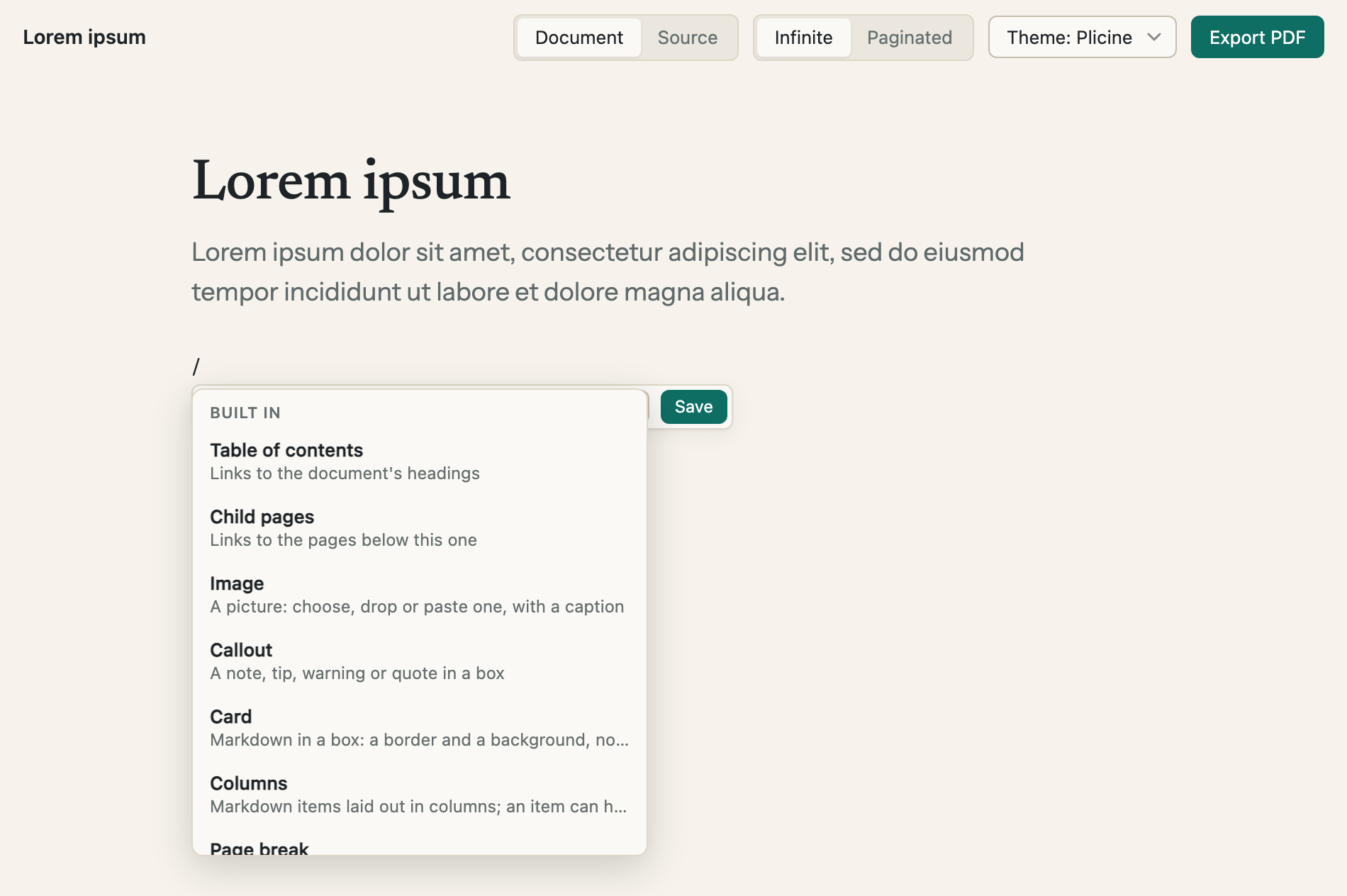
The list under a slash, scrolled down to the built-in blocks.
Changing a block
Click a block and its form opens in a panel on the right, with the page showing the result as you fill it in. In the infinite layout you can also point at the block and click Edit on the small toolbar above it.
- Save keeps your changes. It's greyed out while there's nothing to save, and while a field needs fixing, in which case the panel says "Fix the highlighted fields to save".
- Discard puts the form back to how the block was last saved.
- Clicking anything else on the page closes the panel.
- Drag the panel's left edge to make it wider or narrower. A double-click puts it back.
Some blocks hold text, and that text is edited on the block itself, not in the form. Click the words in a card, a callout or one of the items in a columns block and they open where they sit, exactly as a paragraph does. Inside a columns item, / offers the blocks that can go in there, so a card can sit inside a column. Emptying a card or a callout and saving removes it from the page.
Making a block wider or narrower
Any block can be wider or narrower than the text. Point at a block in the infinite layout and its toolbar has a Narrow, Normal, Wide and Full control; the panel has the same control, labelled Width. Wide reaches part of the way into the margins, and Full takes the whole width of the page.
Blocks in a PDF
A block draws itself twice: once for the screen, where it can react to the pointer, and once for paper, where it can't. So a chart that shows a label when you point at it shows no label in the PDF. Switch to Paginated to see a block exactly as it will print.
For technical readers: a block is written into the document as a few lines of settings (YAML). Documents shows what that looks like, How blocks work explains how Plicine finds the right one, and Core blocks lists every setting of the built-in ones.